



































 PicQuick
The fastest way to the best pic.
Go through your photos as fast as you can tap, zoom, and swipe. No AI. Just you.

For iPhone and iPad.







1 / 24 0 0 100% Add to PicksMark for Deletion
Undo pick
You took four of the same pics. Which one is best?
In your Photos app
Swipe, and the whole photo slides away.
Hard to tell the difference.




In PicQuick
Tap, and it changes right in place.
Now you can see the difference.
1 / 24 0 0 100% Add to PicksMark for Deletion
Undo pick
Zoom in once. It stays put.



1 / 24 0 0 100% Add to PicksMark for Deletion
Undo pick
Swipe up to pick. Down to let go.
Swiped the wrong way? Swipe back.

1 / 24 0 0 100% Add to PicksMark for Deletion
Undo pick

1 / 24 0 0 100% Add to PicksMark for Deletion
Undo pick













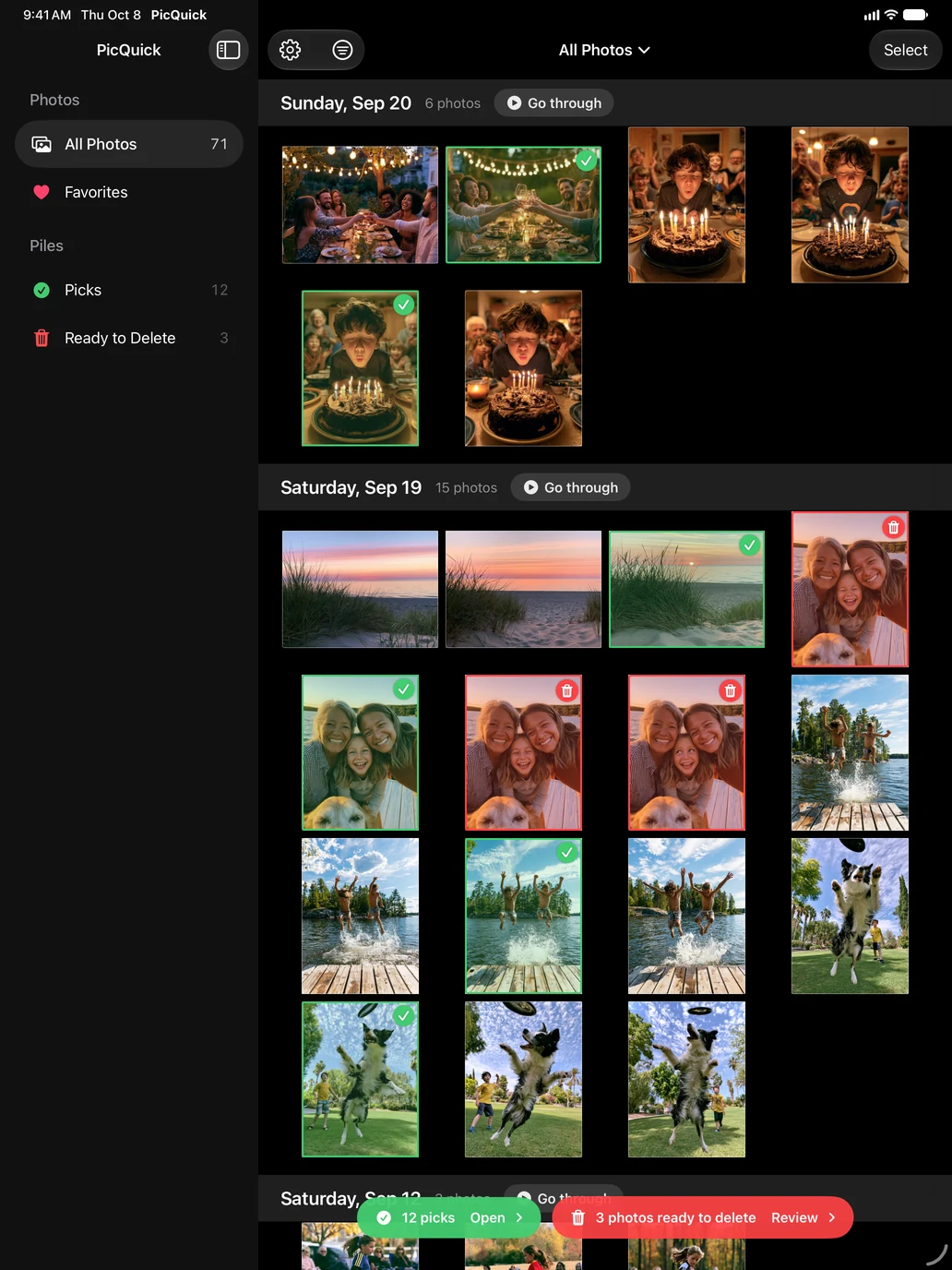
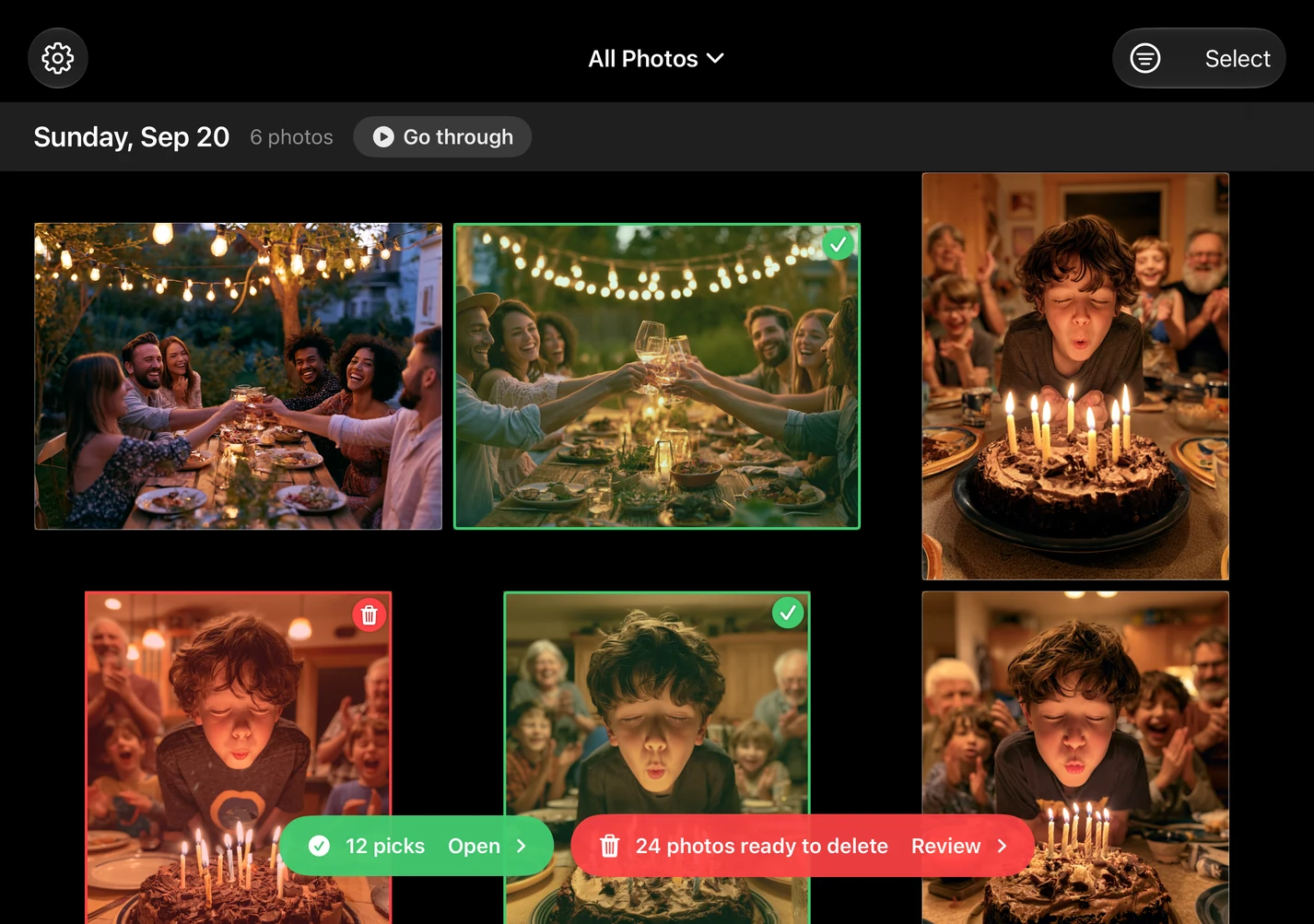
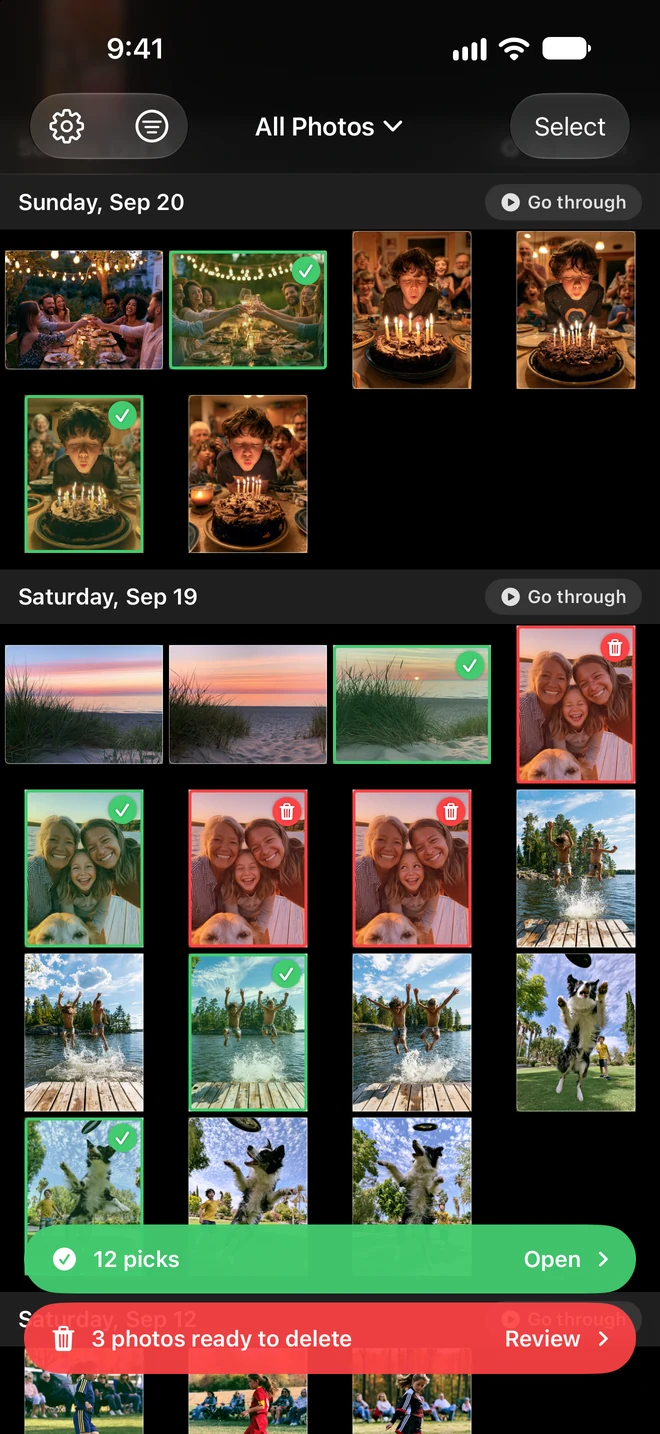
Your whole weekend.
Quick. Fun. Easy to compare.























1 / 24 0 0 100% Add to PicksMark for Deletion
Undo pick
That’s the last one! You went through all 212 photos. 12 picked · 58 ready to delete Done Keep Looking


1 / 24 0 0 100% Add to PicksMark for Deletion
Undo pick
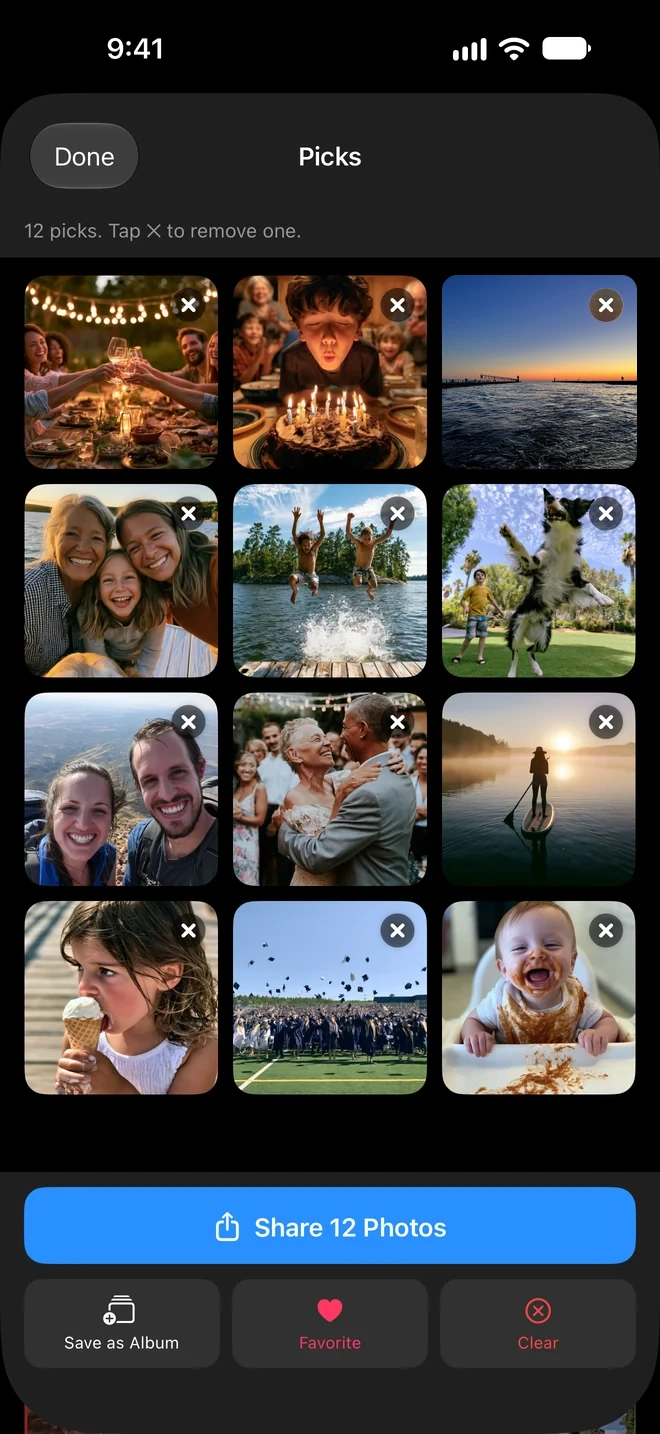
Just the best ones.
Ready to share.


Swipe up the ones you love.
- Swipe up.The photo goes into your Picks.
- Open Picks.Your best ones, all in one place.
- Tap Share.Text them, post them, or save them as an album.
Or make them all Favorites in one tap.
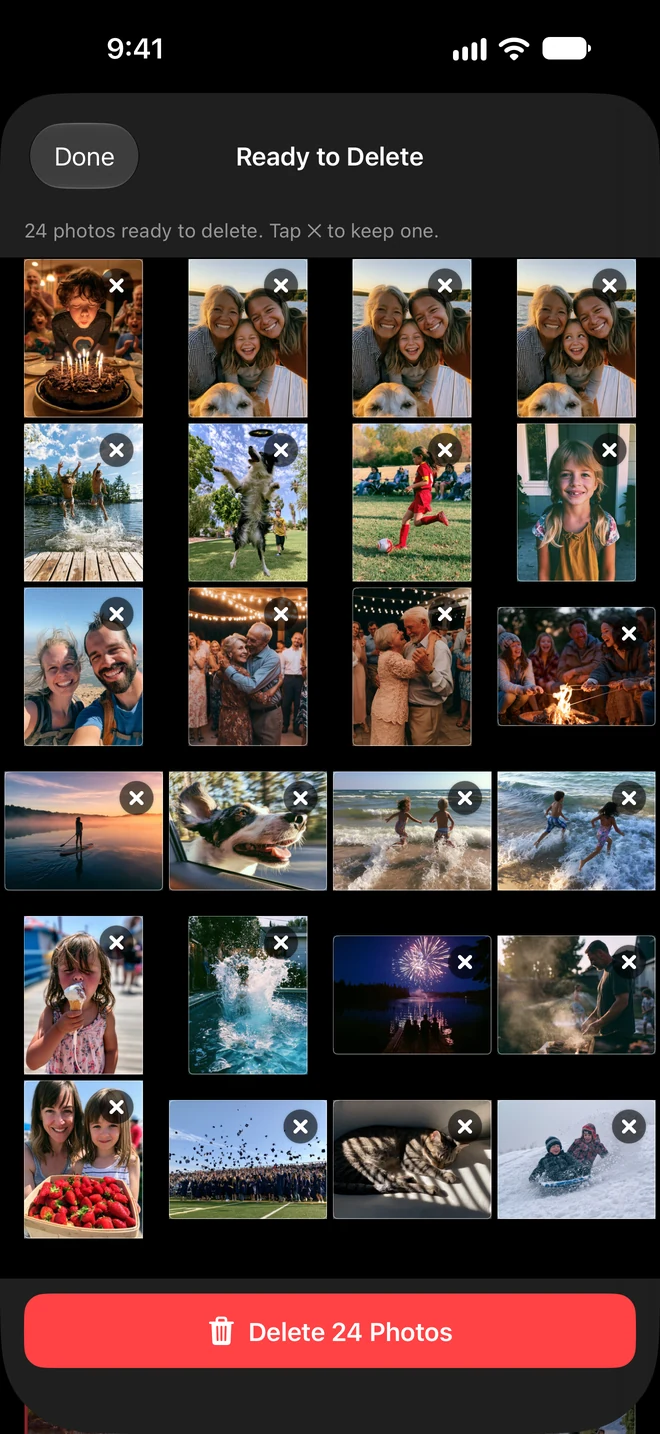
Swiping down doesn’t delete anything.
- Swipe down.The photo waits in Ready to Delete.
- Look them over.Take back any you want after all.
- Tap Delete.PicQuick asks first, then your iPhone asks again.
Even then, your iPhone keeps them for 30 days.
Pro tipIn Settings, you can change what swiping down does. It can add the photo to an album or make it a Favorite instead.
Works great across all your devices.
PicQuick is right at home on your iPhone and your iPad. Same quick taps, same easy comparing, whether you’re holding a phone or sitting back with the big screen.